Back to Maintenance Manager for Manufacturing Main Menu
Managing My Account
The Profile menu allows you to manage your account settings regardless of your role.
From the Profile menu, you can update your information, upload or change your photo, customize the system theme, configure notification settings, and sign out of the application.
NOTE
* Notification Settings vary based on your role.
* Only Administrators can add or update their hourly rates.
To manage the account:
-
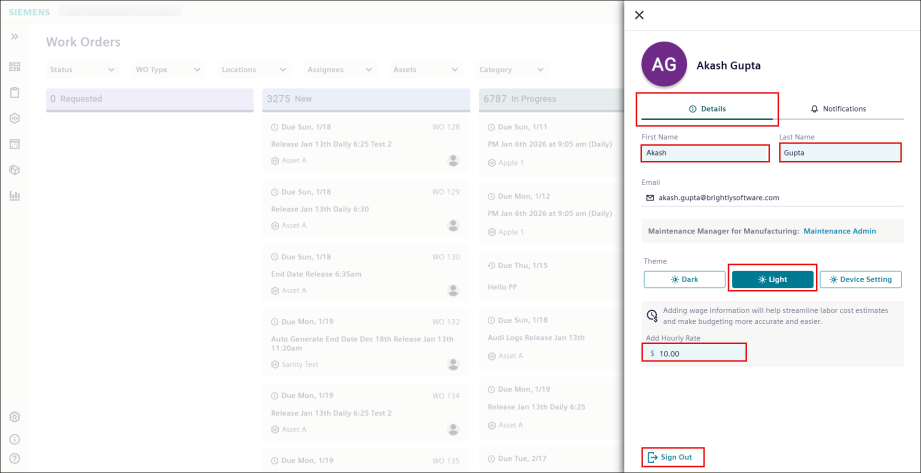
Click the User profile
 icon in the upper-right corner of the page.
-
Click the Name field to update the name.
-
Click
 to apply the change or
  to discard it.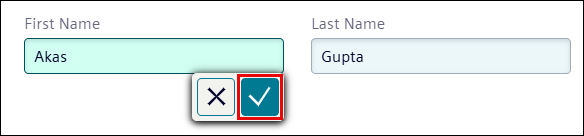
-
Under Theme, select Dark, Light, or Device Setting theme to customize the interface.
-
Click Add Hourly Rate to add labor cost.
NOTE
* Roles and email address cannot be modified.
* Only Administrators are allowed to add hourly rate or update it for Technicians.
Configure Notification Settings
-
Navigate to the Notifications tab.
Users can receive notifications through the following channels, depending on the options enabled:-
E-mail Alerts
-
In-App notifications
-
Push Notifications
-
By-default the E-mail Alerts tab is selected.
E-mail Alerts
1. Under Notification Settings, click Work Orders.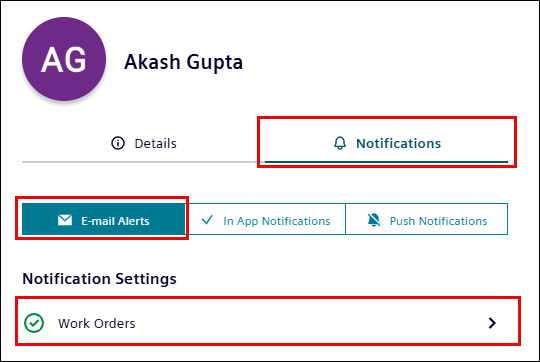
2. Turn on the toggle switch next to the notification option (e.g., Notify me when a comment is added to my work order) to receive email notifications for that event.
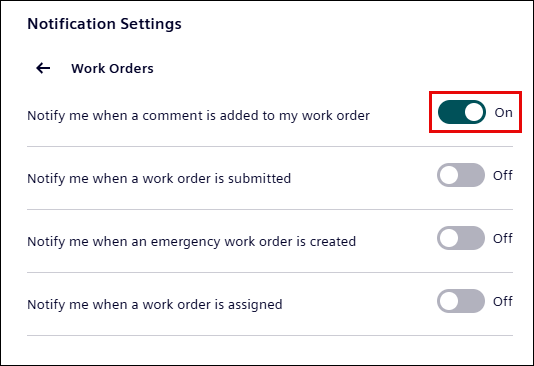
3. Turn Off the toggle switch to stop receiving email notifications for that specific event.
In App Notifications
-
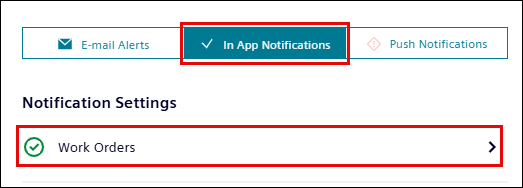
Go to the In App Notifications, and click Work Orders drop-down list.
-
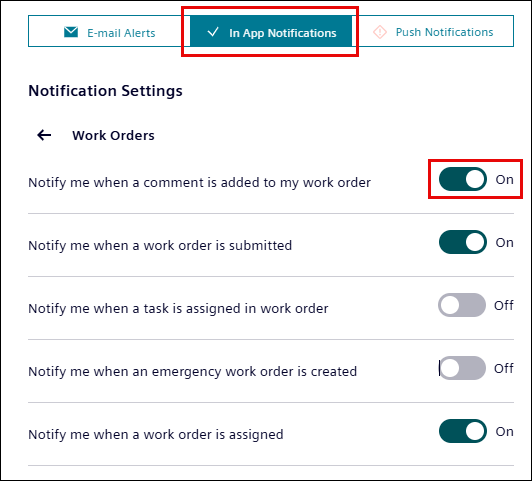
Turn On the toggle switch next to the notification options (e.g., Notify me when a comment is added to my work order) to receive In App Notifications under Notifications bell icon.
-
Turn Off the toggle switch to stop receiving In App Notifications for that specific event.
View In App Notification
-
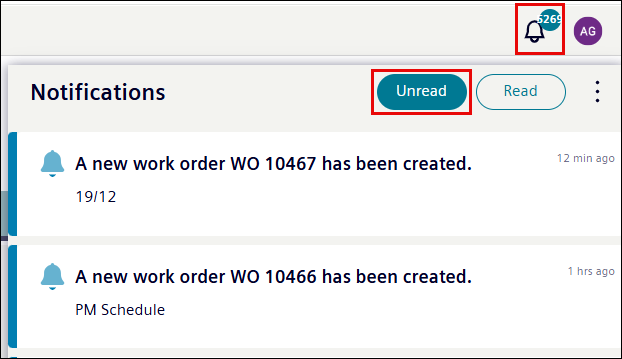
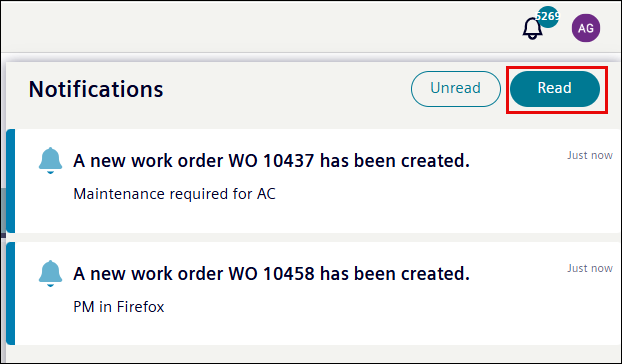
To view the in-app notifications, click the bell icon next to the user profile icon.
-
Click the Unread tab to view unread notifications.
-
To mark all notifications as read at once, click
 > Mark All Read.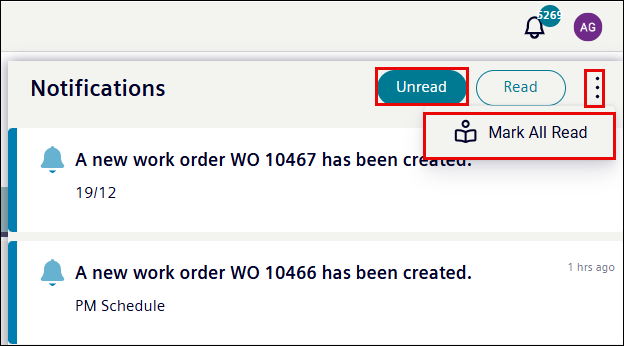
-
Once a notification is read, it is then moved to the Read tab.
Push Notifications
-
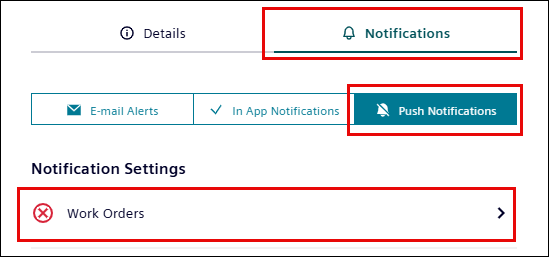
Under the Notifications tab, navigate to the Push Notifications.
-
Click Push Notifications and then click Work Orders drop-down list.
-
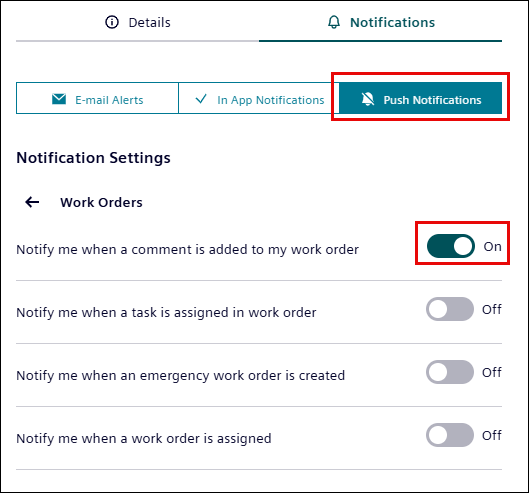
Turn On the toggle switch next to the notification option (e.g., Notify me when a comment is added to my work order) to receive push notification.
-
Turn Off the toggle switch to stop receiving push notifications for that specific event.
